How to Personalize a Gift Online, Step by Step
How to personalize a gift online with our design tool: add names and dates, build characters, upload a photo and check the live preview before you order.

In this article
Wondering how to personalize a gift online without guessing how it will turn out? On every product page in our store you design the gift yourself: type the names, pick the characters, add a photo, and watch a live preview update as you go. What you see on that preview is what we print.
This guide walks through the design tool one step at a time, with tips for names, dates and photos so your gift comes out exactly the way you pictured it. If you want to jump straight in, our custom name gifts are the easiest place to start. For an overview of everything the tool can do, see design your own gift.
Step 1: Choose the Product Options
Start at the top of the product page. If the item comes in different sizes, colors or materials, you'll see them as buttons. Pick one and the price and preview update right away. Options that aren't available in your current combination are grayed out, so you can't accidentally choose something we can't make.
Some products also offer more than one design layout. Each one appears as a small thumbnail, so you can compare looks before you type a single letter.
Step 2: Follow the "Personalize It" Steps
Below the options you'll find the Personalize it panel. It shows how many steps the design has and numbers each one, so you always know where you are. Steps marked with a star are required.
Designs with several people or pets are split into sections, such as "Woman 1", "Man 2" or "Dog 1". A side rail lists those sections, and once you type a name, the rail shows it next to the section ("Dog 1 · Max"). Tap any section to jump straight to it.
If you try to add the gift to your cart with a step still empty, the tool tells you exactly which step numbers are missing, so nothing ships with a blank spot.
Step 3: Add Names, Dates and Messages
Most gifts start with words. Here's how each kind of text step works:
- Names and short text: type into the box and a counter shows how many characters you have left. Every design has its own limit, chosen so the text stays readable on the finished product.
- Messages: longer lines get a bigger box with room for several lines.
- Dates: a date picker keeps the format clean, which matters for anniversaries, weddings and "est." years.
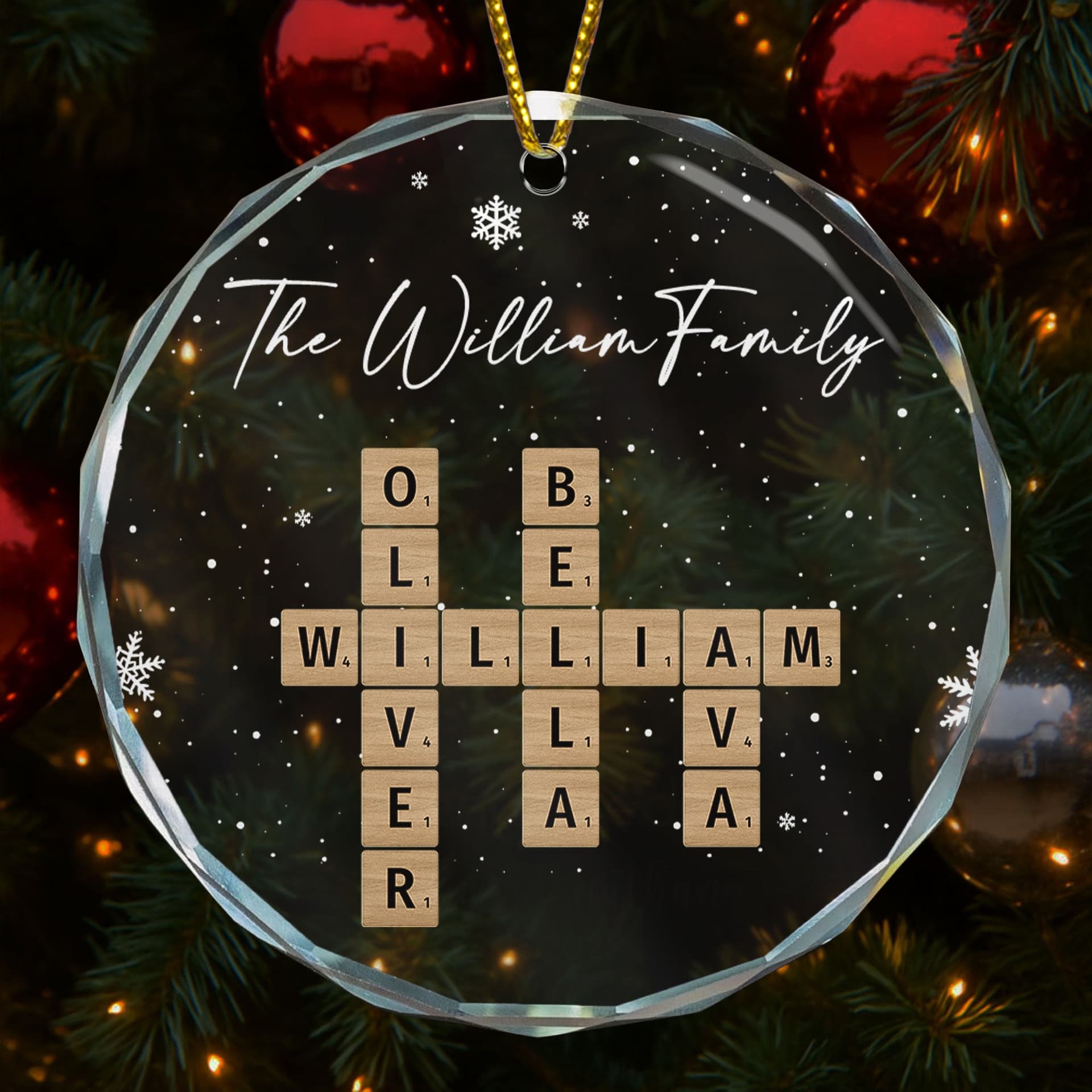
- Word puzzles: crossword and Scrabble style designs take a list of names. Type a name and press Enter, space or comma to add it as a chip, and tap the × to remove one. These designs use letters A to Z only, and the tool shows how many words you can add.


Step 4: Build the Characters
Many of our most loved designs feature little cartoon characters that look like the people (and pets) in the family. On these designs you choose things like hairstyle, hair color, skin tone, outfit and accessories for each person.
Pet choices go deep. A dog step, for example, lets you narrow down by breed and then pick the coat color, so your golden retriever looks like a golden retriever. Each choice shows as a picture or color dot, and the preview updates the moment you tap it.


See every design that works this way in our custom character gifts collection.
Step 5: Upload a Photo
Photo designs have an upload step. Choose a JPG or PNG from your phone or computer and the tool takes it from there:
- Upload: your photo is sent to our studio.
- Background removal: on designs that place a person or pet on artwork, the background is cut out automatically so only the subject remains. It usually takes a few seconds.
- Adjust: use the Zoom, Left/Right and Up/Down sliders to position the photo until it sits just right in the preview.
A small progress window shows each stage. If something goes wrong (a slow connection, for example), you can retry with one tap or choose another photo. You can also remove the photo and start again at any time.


Step 6: Try an AI Art Style (On Selected Designs)
Some designs offer an AI style. Upload your photo, pick a style, and our AI redraws the picture in that look in about 20 seconds. The result appears on the live preview before you order. Don't love it? Change the photo or the style and try again as many times as you like. We print the version you see, and your original photo stays with your order so we can check the print against it.
Browse designs that turn a picture into artwork in photo to art gifts.
Step 7: Check the Live Preview
The preview at the top of the page redraws as you work. The first time you change a step, a highlight frame flashes around the spot on the product where that change shows, so you can see exactly what you just edited.
On a phone, where the preview scrolls out of view, tap Preview in the side rail (or the "See Preview" hint that appears after each change) to open a large view of your finished design. It's the best moment to check spelling, dates and photo position one last time.
Step 8: Add to Cart
Choose the quantity and tap Add to cart. Your design is saved with the item, including a small preview image so you can recognize it in your cart.
Changed your mind mid-design or closed the tab? Your unfinished design is saved as you go, so it comes back when you reopen the product page in the same browser.
FAQ
Will my gift look like the preview?
Yes. The live preview is drawn from the same file we print, so names, characters, colors and photo position come out as you set them.
Can I personalize a gift on my phone?
Yes. The design tool works on phones, tablets and computers. On a phone, use the Preview button in the side rail to see the full design at any time.
How long can the name or message be?
Each design sets its own limit so the text stays readable. A counter under the text box shows how many characters you have left.
What kind of photo should I upload?
A clear, well-lit JPG or PNG with the face or pet filling most of the frame. If the result doesn't look right, upload a different photo and the preview updates right away.
What if I leave the page before I finish?
Your design is saved as you work. Open the same product again in the same browser and it picks up where you left off.
Start Designing Your Gift
Now that you know how to personalize a gift online, the fun part is picking what to make. Start with our custom name gifts, build a family in custom character gifts, or turn a favorite snapshot into something special with our guide to personalized photo gifts. Shopping for the holidays? See personalized Christmas gift ideas for everyone on your list.
Keep Reading
All articles
Design Your Own Gift With the Gitzie Design Tool
Design your own gift with the Gitzie design tool: add names, build characters, upload photos or turn them into art, and see a live preview first.
Baby’s First Christmas Gifts They’ll Treasure for Years
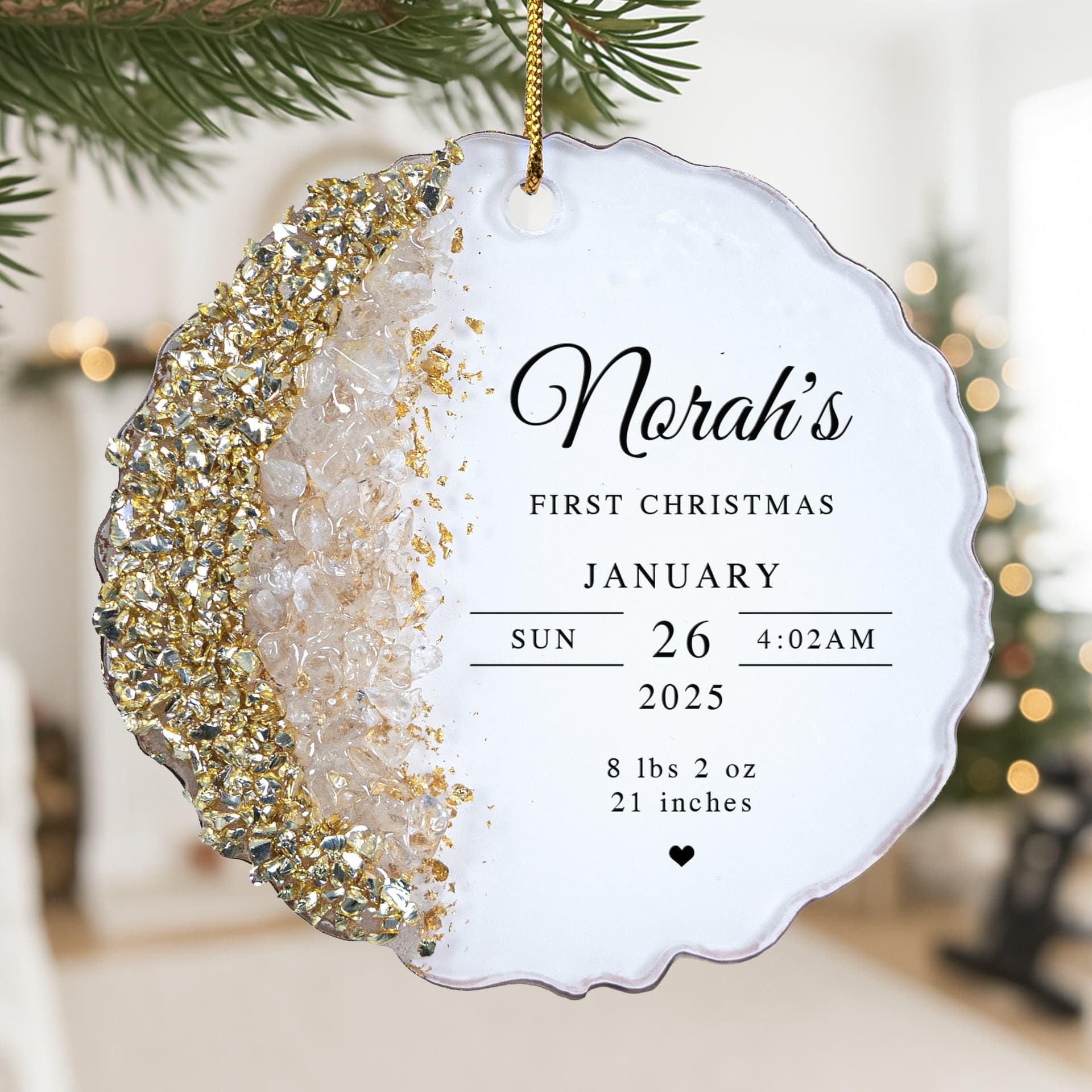
Baby’s first Christmas gifts worth keeping: ornaments, stockings, onesies and blankets with the baby’s name, photo and birth details.

Personalized Christmas Gifts for Grandkids They’ll Love
Personalized Christmas gifts for grandkids: stockings, ornaments, pajamas and blankets with their name, picked by grandparents who want to share the magic.